Accessibility
Accessibility at Kyool
Fitness is better when everyone can participate. At Kyool, we design experiences that help people stay active, connect with friends, and use the app in ways that work for them.
Kyool works with many of the accessibility features built into your phone and web browser. Below, you’ll find what each one does in Kyool today on iPhone, Android, Apple Watch and the web, including where support is still limited.
Last updated: October 14, 2026
Accessibility features
Organized by the accessibility categories you’ll see on the App Store.
VoiceOver
Hear what’s on screen and move around by touch or keyboard, with VoiceOver on iPhone or TalkBack on Android.
- iPhone and Android
- Home, your profile, settings and the tab bar have spoken labels, and FAB calendar days are read out with their status. Some buttons, including a few on the workout logging screen, aren’t described yet.
- Apple Watch
- Screen reader support on Apple Watch is limited for now.
- kyool.app
- Pages use clear headings and landmarks, and buttons and links have names screen readers can announce. Images on our main pages have text descriptions. In Blog and Help articles, images may not have full descriptions yet. For example, blog cover images currently use the post’s title.
Voice Control
Tap, scroll and type by speaking, with Voice Control on iPhone or Voice Access on Android.
- iPhone and Android
- Say the name of a button you can see to tap it. A few icon-only buttons don’t have a name yet. For those, use “Show numbers” or “Show grid”.
- kyool.app
- Every link and button has a name that matches its visible label, and everything works with a keyboard.
Larger Text
Make text bigger and easier to read.
- iPhone and Android
- Kyool follows the text size you set on your phone. A few cards limit how large their text grows so the layout stays intact.
- Apple Watch
- Text on Apple Watch doesn’t change size with your settings yet.
- kyool.app
- Zoom to 200% or more in your browser. Pages rearrange to fit without sideways scrolling.
Dark Interface
Use a dark design that’s easier on the eyes in low light.
- iPhone and Android
- Choose Light, Dark or System, which matches your phone’s setting.
- Apple Watch
- The Watch app always uses a dark design.
- kyool.app
- Switch between light and dark with the button in the header.
Differentiate Without Color Alone
Understand information without having to tell colors apart.
- iPhone and Android
- Your FAB calendar marks days with symbols like ✓ and ★ and includes a written legend. Missed and upcoming days currently differ only by color on screen, but the legend and spoken descriptions tell them apart.
- kyool.app
- Links in text are underlined, and information uses words and icons, not color alone.
Sufficient Contrast
Read text that stands out clearly from its background.
- iPhone and Android
- Text is designed to stay readable in light and dark mode. With every accent color, button text switches between dark and light automatically. In light mode, Neon Lime and Ice Cyan buttons are softer against the background, so pick another accent if you’d like buttons to stand out more.
- kyool.app
- Text and controls are designed to stay readable in both light and dark mode.
Reduced Motion
See fewer animations if motion is uncomfortable for you.
- iPhone and Android
- With Reduce Motion on iPhone or Remove animations on Android, some animations, like guided tips and the Home carousel, are calmer. Celebration effects still play for now.
- Apple Watch
- The Watch app doesn’t reduce its animations yet.
- kyool.app
- The site follows your device’s reduced motion setting, and you can pause the homepage slideshow.
Captions
Text for speech and sounds in videos.
- iPhone and Android
- Kyool doesn’t have videos or audio with speech, so there’s nothing to caption. Exercise demonstration clips are silent.
- kyool.app
- The website doesn’t host video or audio.
Audio Descriptions
Narration of what’s happening on screen in videos.
- iPhone and Android
- Kyool doesn’t have narrated videos. Exercise demonstration clips show the movement without sound. Where available, written step-by-step instructions appear under the clip under “How to perform”.
- kyool.app
- The website doesn’t host video.
Personalize your experience
Choose how Kyool looks in the app and on the web. Your app and website settings are saved separately.
In the Kyool app
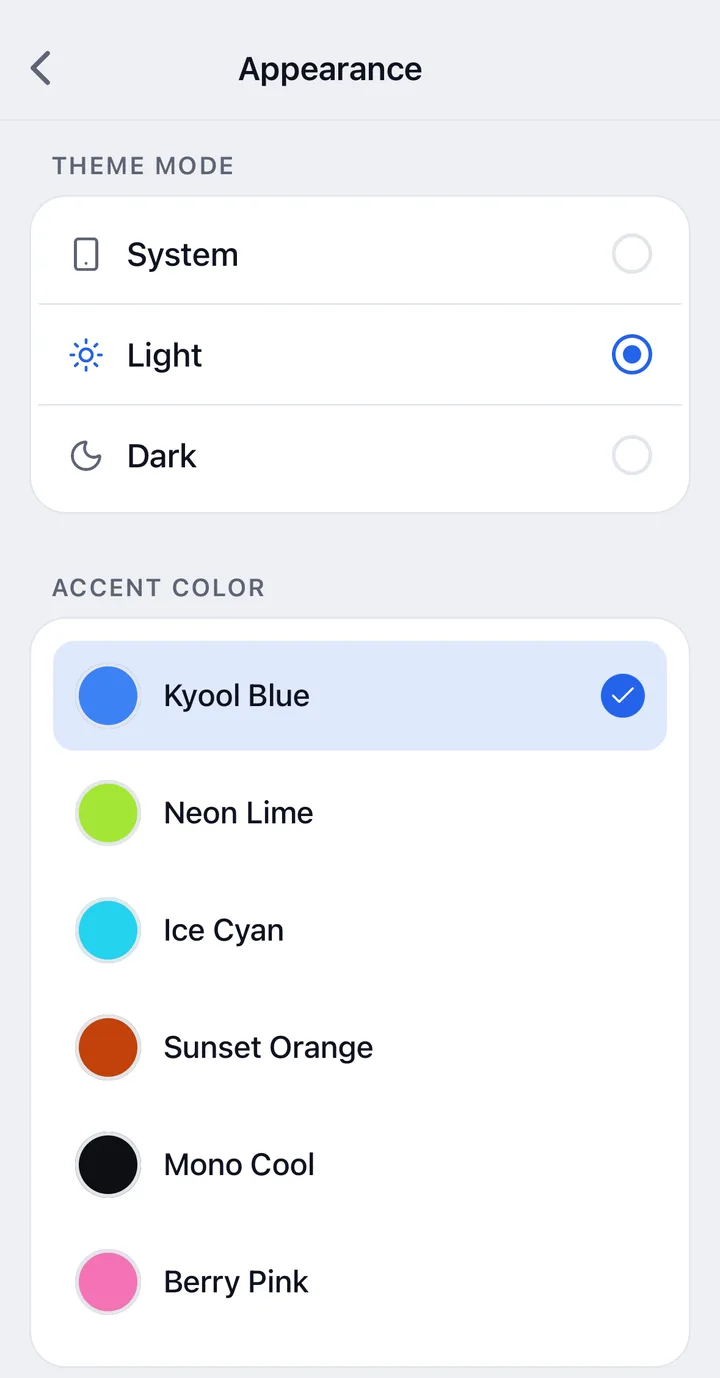
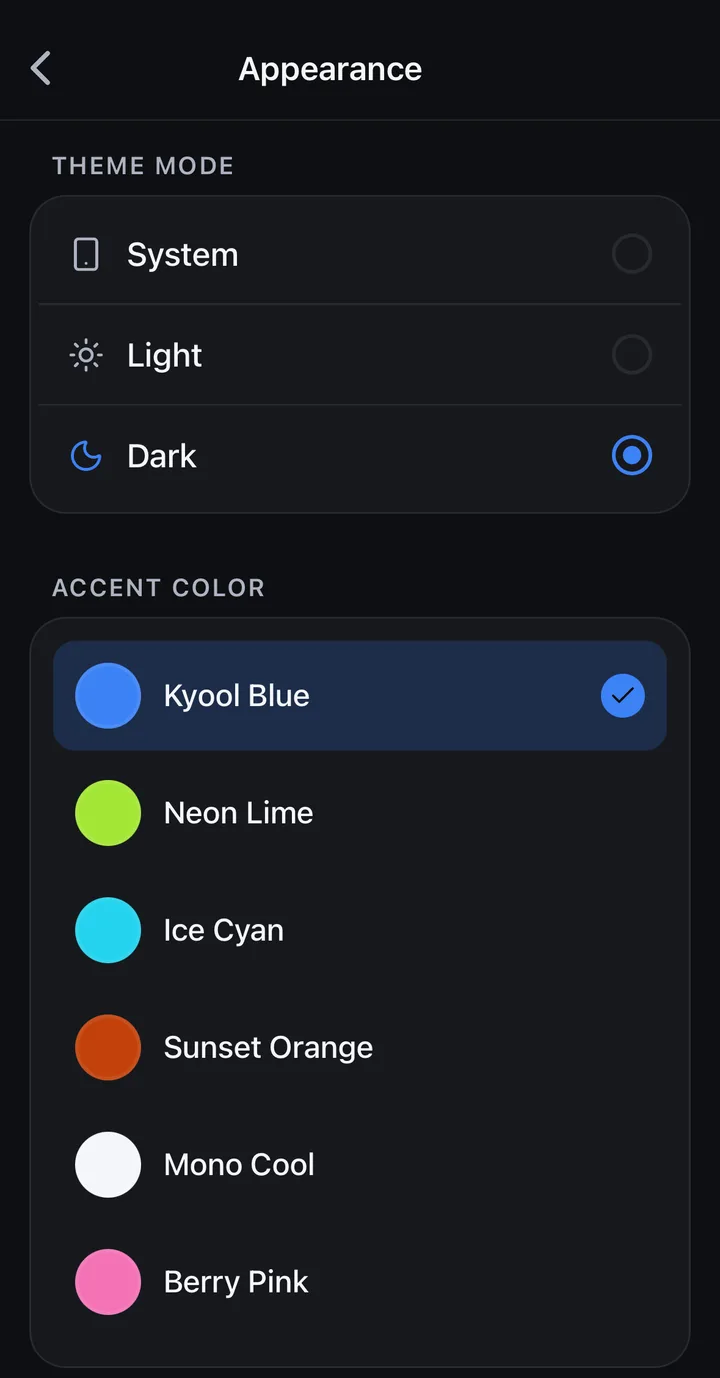
Open the You tab, tap the Settings gear, then under Preferences tap Appearance.
Theme mode
- System matches your phone’s light or dark setting. This is the default.
- Light keeps Kyool light.
- Dark keeps Kyool dark.
Accent color
Pick the color Kyool uses for buttons and highlights. All six are available on every plan, and your choice is remembered.
- Kyool Blue (default)
- Neon Lime
- Ice Cyan
- Sunset Orange
- Mono Cool
- Berry Pink
On kyool.app
The website starts in light mode. Select the moon button in the header to switch to dark mode, or the sun button to switch back. Your choice is saved in this browser.
Need accessibility help?
We want everyone to have a great experience with Kyool. If you experience an accessibility issue or need assistance using the app, we’d love to hear from you.